
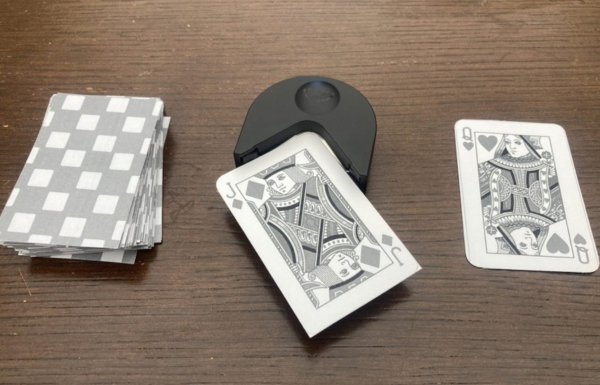
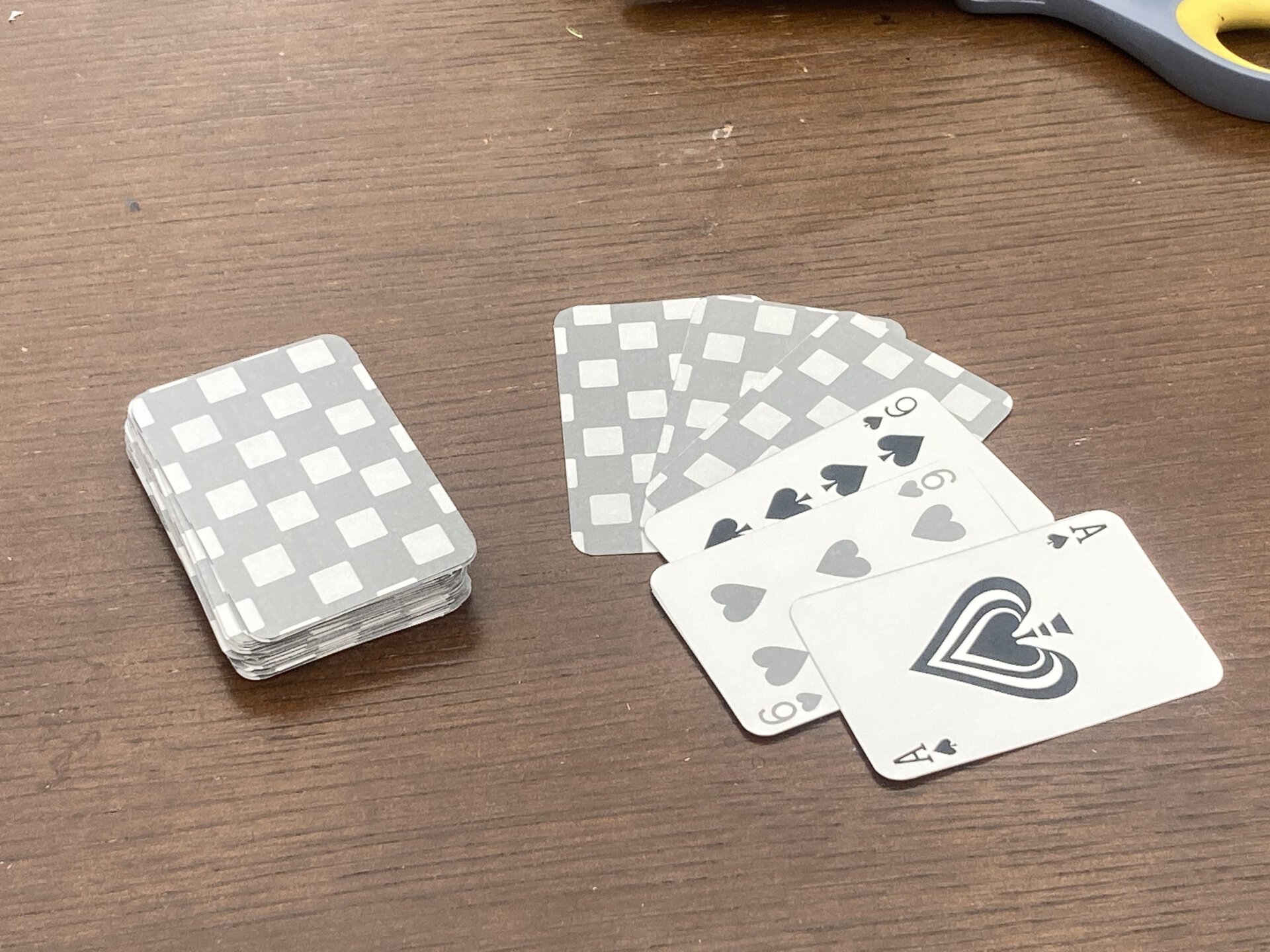
If you find yourself needing a new set of playing cards, from proxy cards for Magic the Gathering, a deck for the latest print and play game you found, or a game you designed yourself, making playing cards is an important niche of crafting.
For this project you will need:
-A printer (only black and white printing is available at the DeKalb Public Library)
– A PDF Editor (A full version of Adobe Acrobat or UPDF will work for this).
-An Image Editor (Photopea or Adobe Photoshop)
-A computer with Windows (available at the DeKalb Public Library)
-Paper cutter (available at 309 Makerspace during Open Lab)
-Corner rounder (available at 309 Makerspace during Open Lab)
1. MAKING CARDS
This is the easy and fun part. Draw whatever designs you like. There are many card generator sites online. I used a standalone program, Cardmaker, which generates cards from tables of data.
To use Cardmaker I first created a database of all my cards using Microsoft Excel. You could make this in Notepad as a CSV file where you can describe elements of your card.
Cardmaker lets you create areas on a card template that you can link to your database, allowing you to generate consistent images of all your cards and then export them as individual images or a printable PDF. With Cardmaker, updating cards is a breeze. Changing artwork or writing is much faster than individually editing each card one at a time.
MEASUREMENTS: to make standard size playing cards at 300 DPI (print resolution) requires an image size of 750×1050 pixels.
2. CREATING SHEETS OF CARDS FOR PRINTING FROM INDIVIDUAL IMAGES
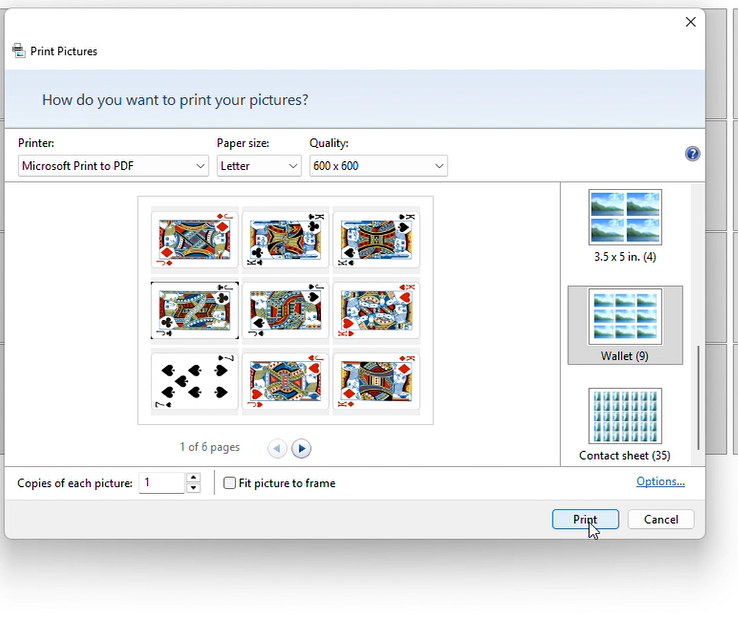
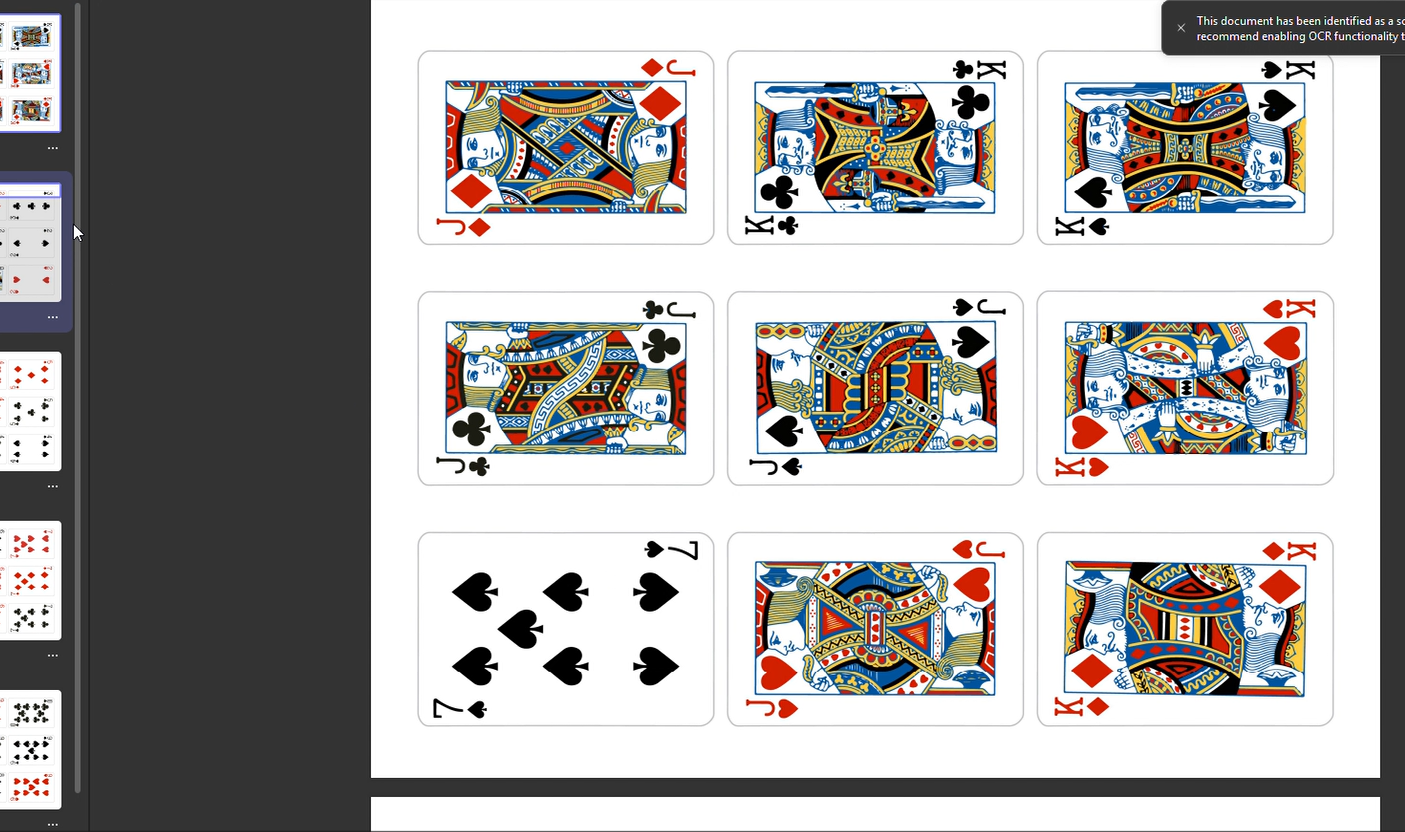
If you have individual card images, you can make them into a printable sheet by selecting them all, right clicking and selecting ‘Print’. Choose the ‘Wallet’ print option to distribute the cards in a 3×3 grid. Then instead of printing, Save as PDF.
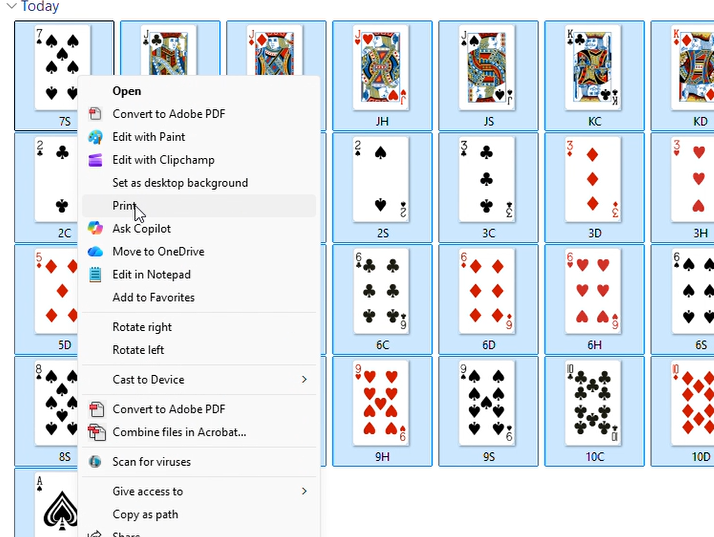
STEP 1. Select all the card images you want on a Windows machine, then right click, choose ‘select more options’ then ‘print’.
3. MAKING CARD BACKS
The next step is to create some card backs. One major problem with printing cards is aligning the front and back sides. Most duplex printers are not consistent and will misalign the two sides. Professional printers align two individual front and back sheets between a plastic sheet, and glue all three together, avoiding the issue and giving the card a polyurethane core.There are several solutions to this, one is to print the front and back of a card connected and fold and glue the card together. Another is to glue cards front and back.
However, to save resources, and a lot of time, we suggest creating a repeating pattern for the card back to be printed on the reverse side of the card fronts. This makes alignment not important, allows for double-sided printing, and halves the time it takes to cut out the cards.
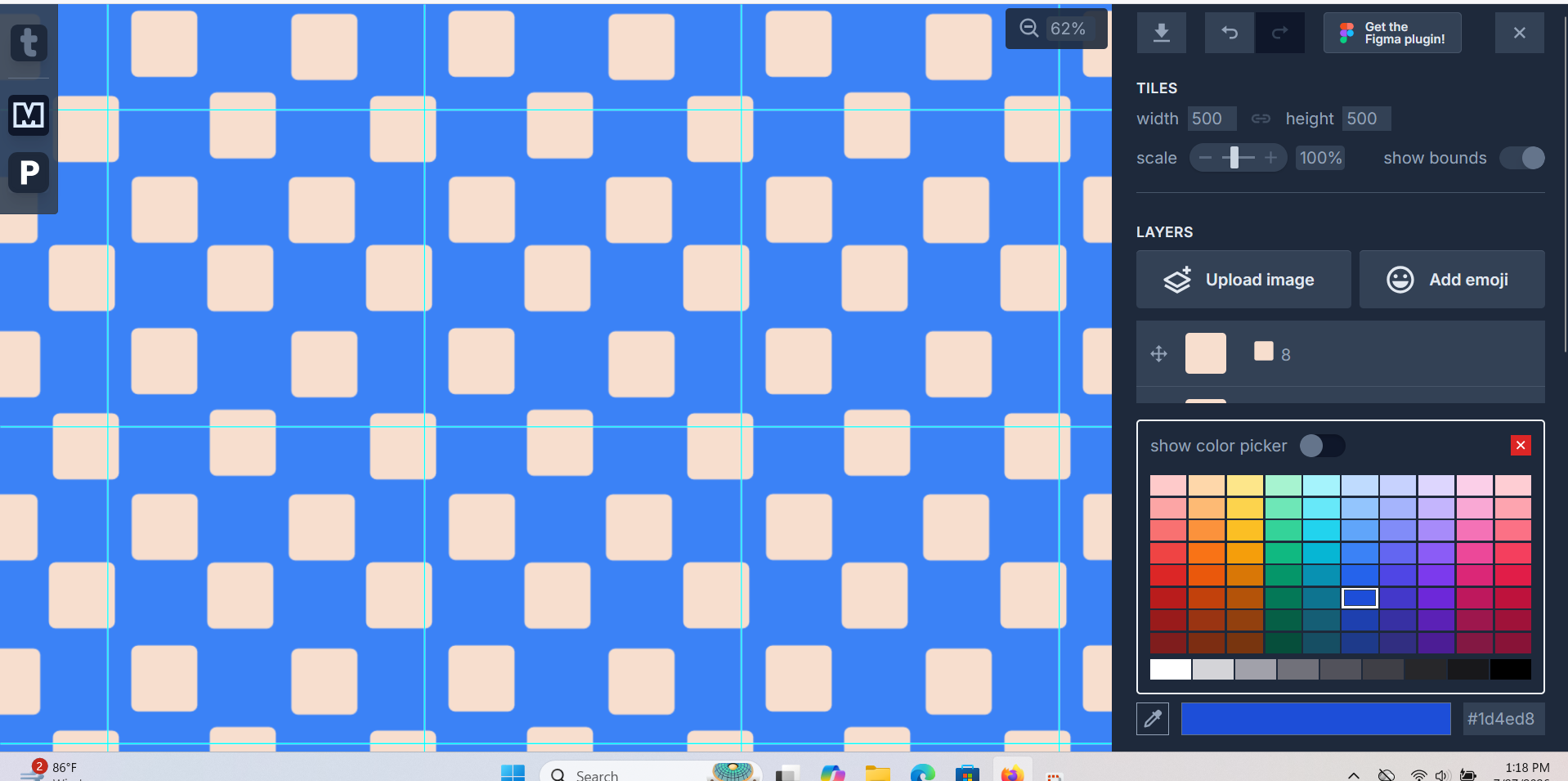

Then load it into Photopea or Photoshop, go to Edit -> Define New -> Pattern.
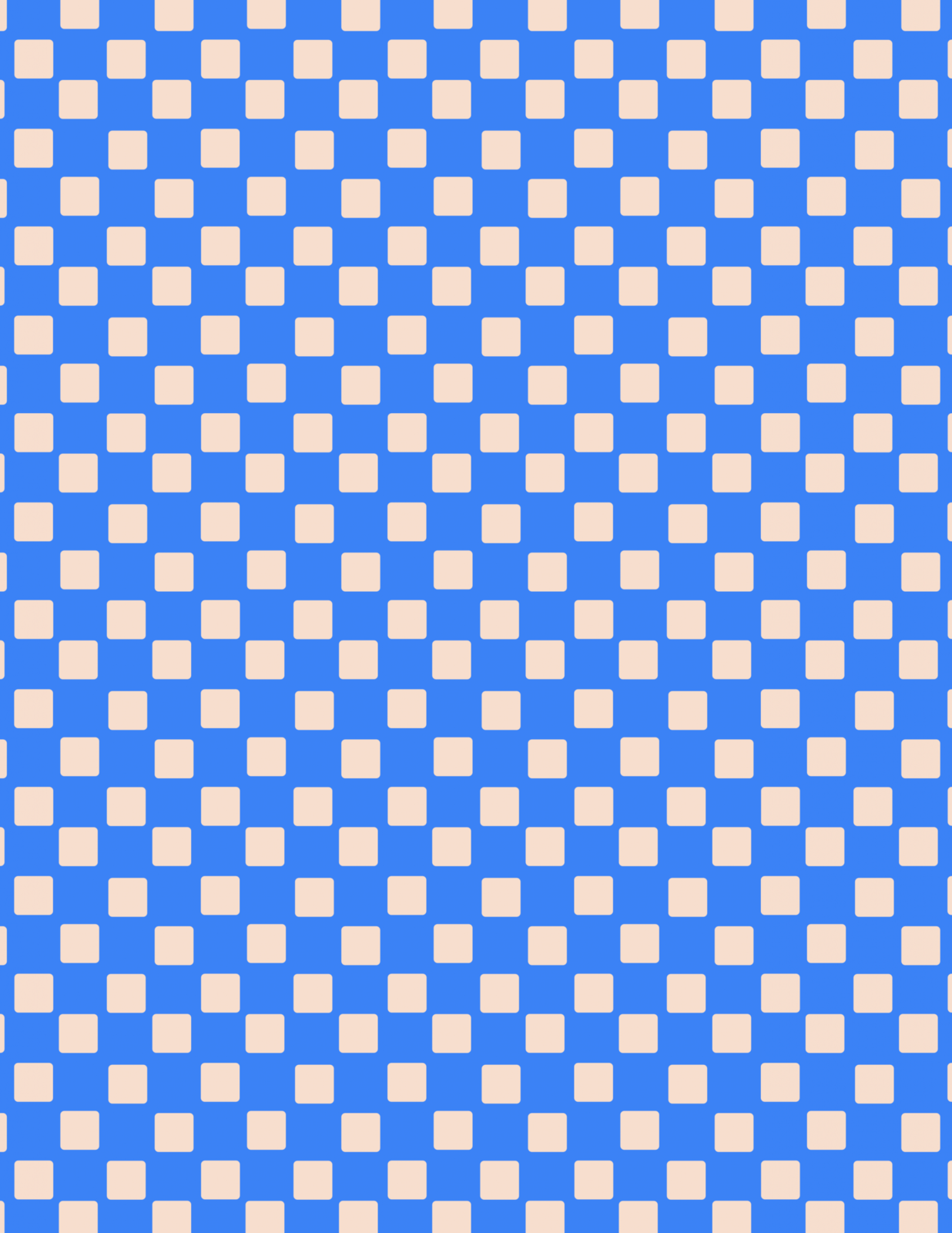
The result is an image file like that above, perfectly sized to print on the reverse side of your cards!
4. PRINTING
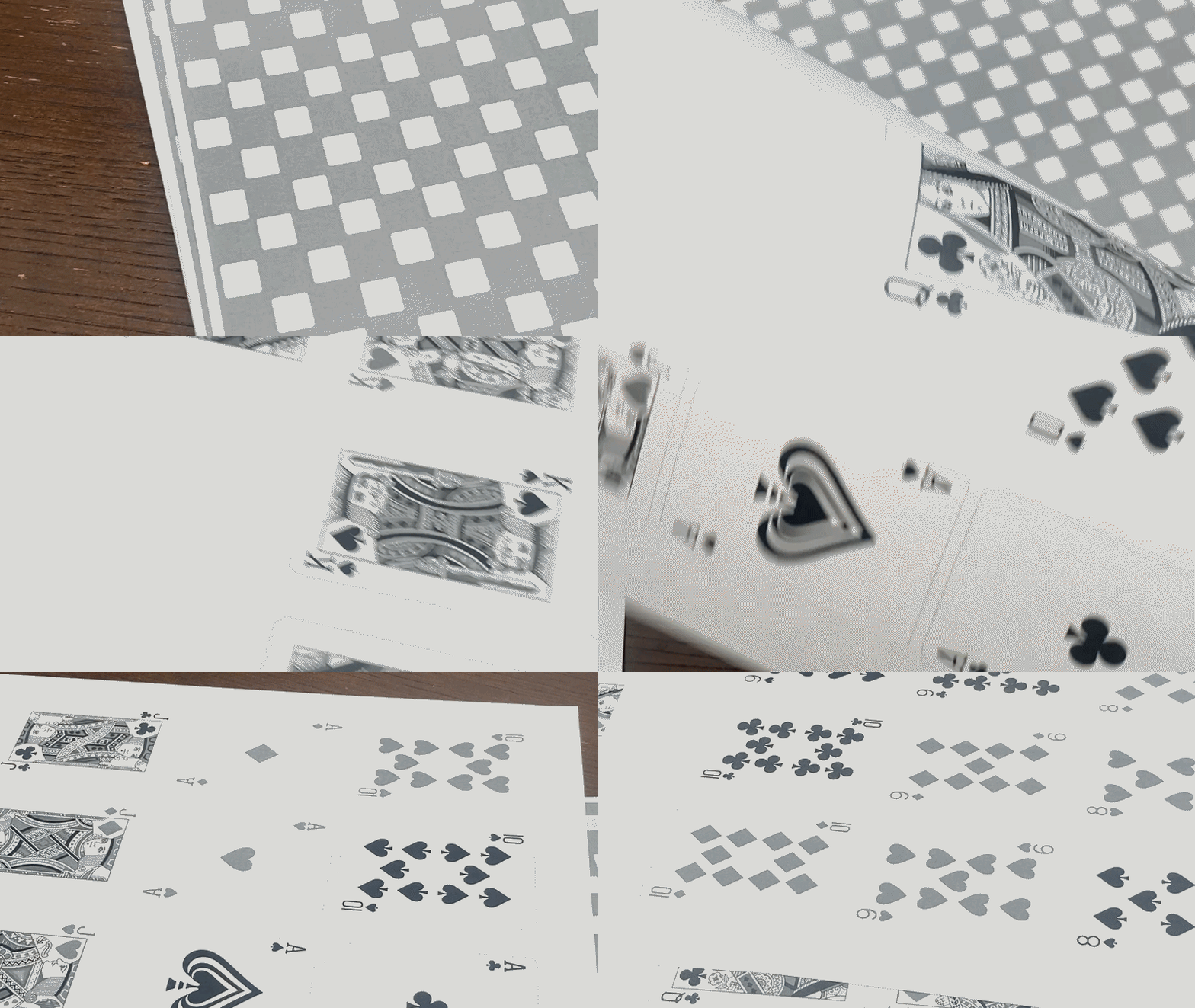
What we want to print is a document with Card Fronts and Card Backs alternating, so that double sided printing will produce the correct effect.
You can use pdf editors like Adobe Acrobat or UPDF (free, but you will need to make an account) to make this file and print it.
To print at the Dekalb Public Library, the best practice is to save this final print file as a PDF and upload it to our printing website Princh. Upload the file, select the gear option and make sure double-sided printing is set to yes. Then check the box at the bottom of the screen and press continue. On the next screen select the image that says Pay At Desk and enter your name, then click Order Print. Only black and white printing is available at the library. The first 100 pages are free, any further sheets will be charged 0.10 per page. Head over to the library’s Tech Desk and speak to the person working, who will then release the print to our printer.
This will give you some paper test prints that you can check before printing them on cardstock at a printer’s office or on websites like MakePlayingCards.
4. CUTTING OUT THE CARDS
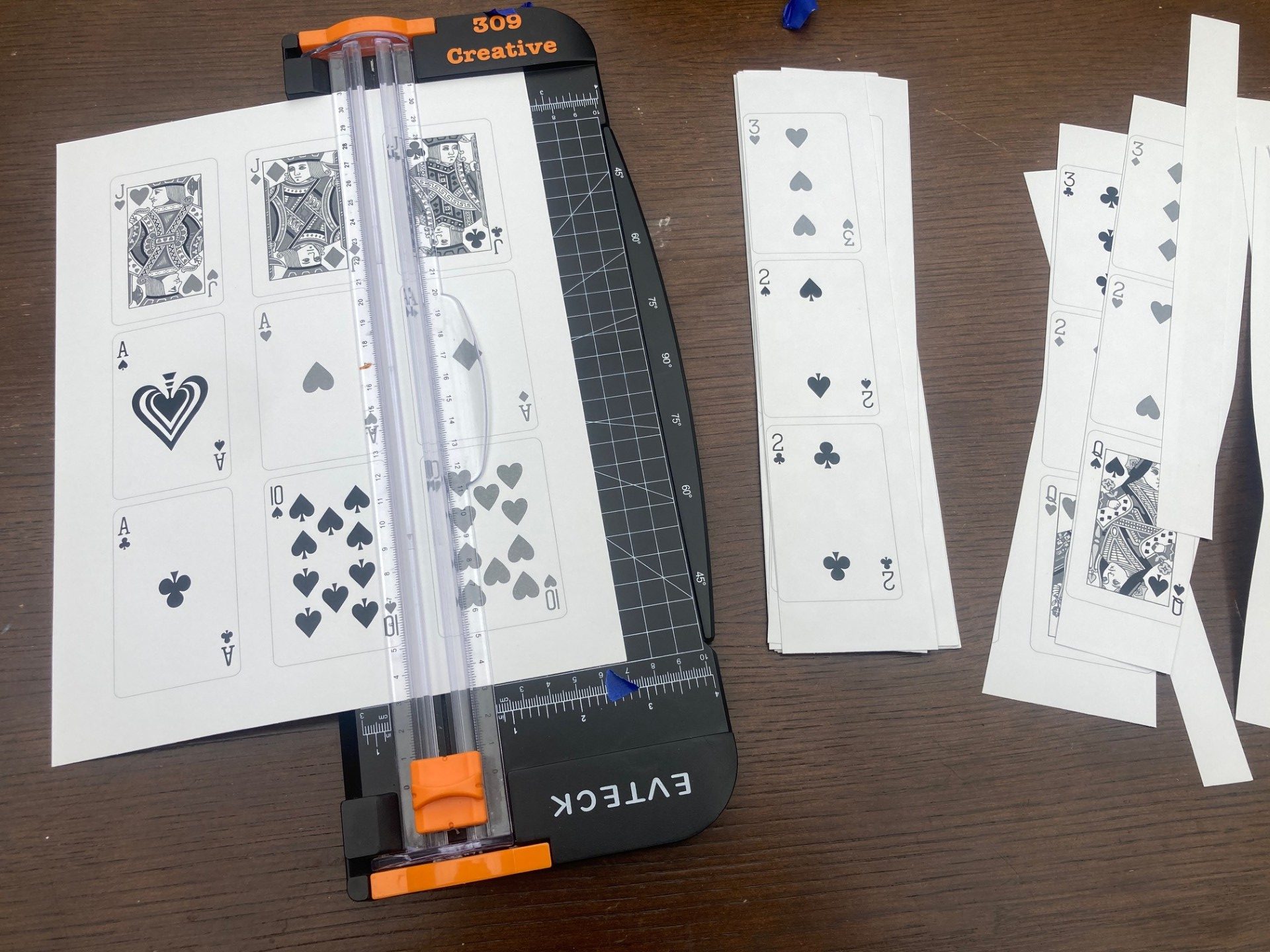
A good paper cutter is recommended for cutting out the cards for consistency and is available in 309 Creative during Open Lab hours. A corner rounder is also on hand during Open Labs. Take things slow and straight, measure twice before cutting!
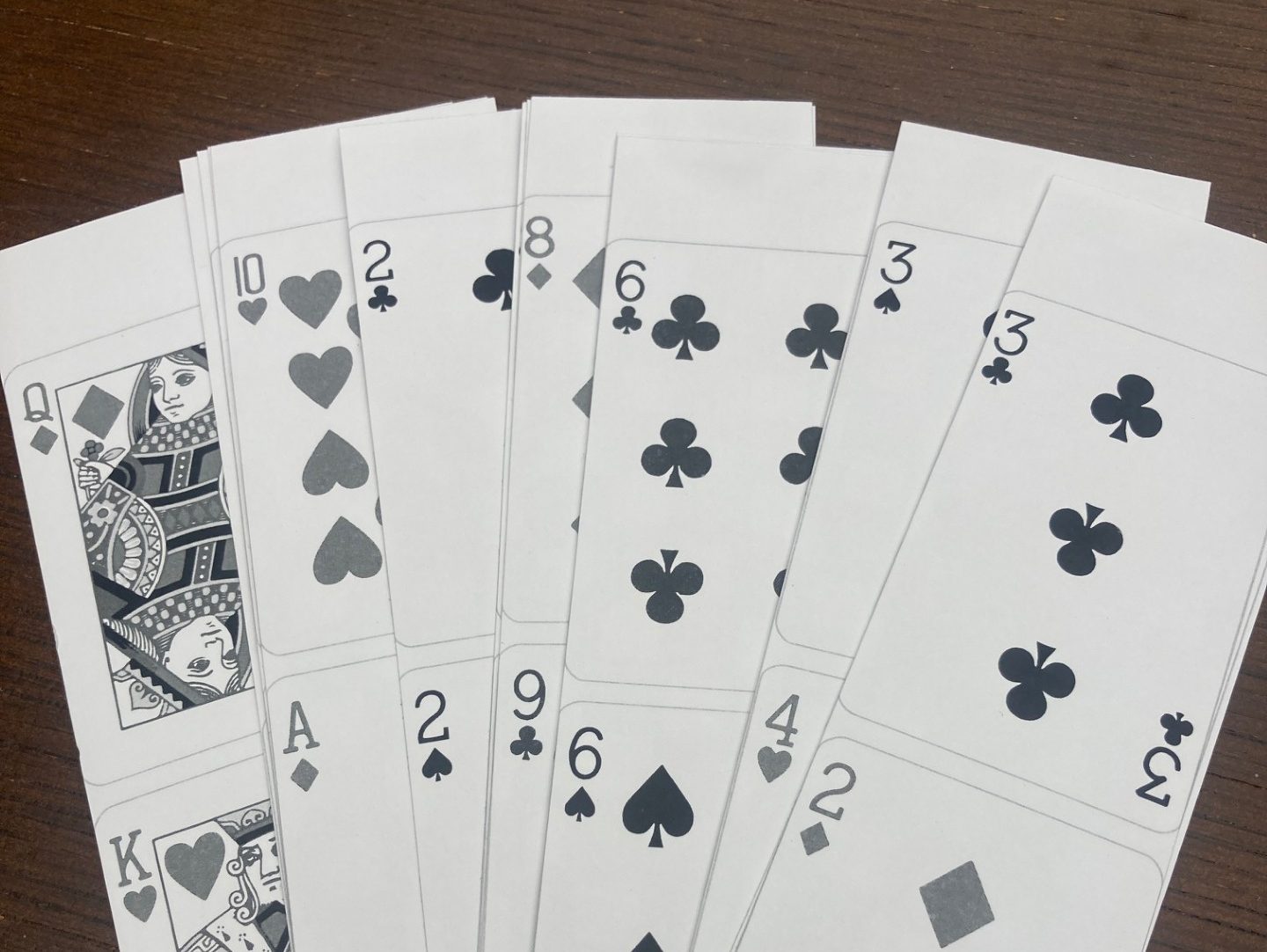
Cutting out large amounts of cards is the most strenuous part of this process. One way of approaching the task of cutting is to break it down into each individual step of manufacture:
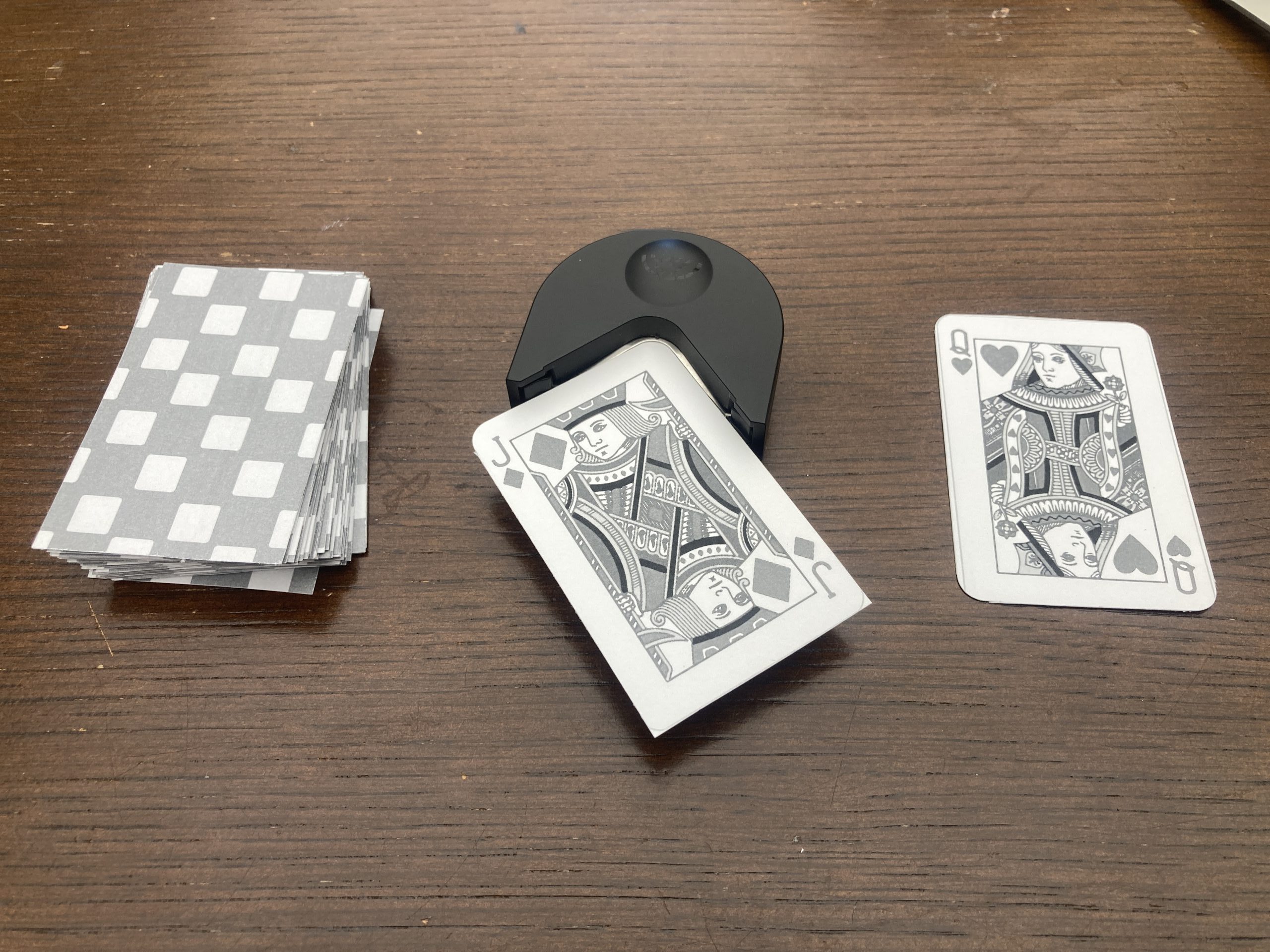
Done! Enjoy your own custom-made cards that can be shuffled and played. Experiment with different types of cardstock to find a size and thickness to meets your needs.
Questions? Email us at [email protected], call us at (815)756-9568 ext. 2851, or visit us in person at the Tech Desk and 309 Makerspace!
Our Open Lab hours are:
5:00 – 8:00 PM Tuesdays
9:00 AM -12:00 PM Fridays
9:00 AM -12:00 PM Saturdays
Stop in for more advice or hands on work making cards or anything else arts and crafts.